Flash used to be everywhere. Games, animations, e-learning content—if it moved on a webpage, chances are it was built with Flash. But Flash is now obsolete. Adobe ended support in 2020, and most browsers won't run SWF files anymore. Many people are stuck with old content they can't open or share. If you've got SWF files you still want to use, converting them to a more common format like WMV (Windows Media Video) can be the way out.
WMV works well across most Windows platforms and editing software, and converting SWF to WMV can help you keep old projects accessible. You don't need a technical background; you can get the job done with the right tool. Let's look at some options.
Best Tools to Convert SWF to WMV
Movavi Video Converter
Movavi is easy to use, even for someone who's never converted a video. It supports various formats and handles SWF to WMV conversion with minimal fuss. The interface is clean and not overloaded with buttons or tech terms.
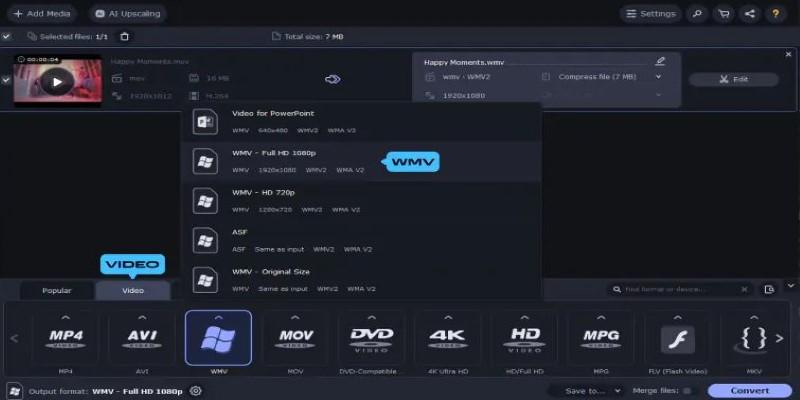
What makes it stand out is how smoothly it runs on both low-end and higher-end PCs. You load the SWF file, pick WMV as your output format, hit convert, and that's it. It also lets you trim or edit the video a bit before converting. Movavi isn't free, but the trial version gives you a good feel for what it offers. That might be enough if you're only doing this once or twice.
Xilisoft SWF Converter
Xilisoft SWF Converter is built specifically for Flash files. That gives it an edge because it recognizes how SWF files behave, especially if they have interactive elements. While interactive content won't fully translate into WMV (since video files don't respond to clicks or buttons), Xilisoft captures the visual playback well.
The interface is dated but functional. It allows basic settings like changing resolution or setting audio output. It's not ideal for bulk conversion, but it works fine for a few files at a time. This tool is a bit more technical than others, so it's better if you're okay with tweaking settings.
RZ Video Converter
RZ Video Converter is lesser known but handles SWF files surprisingly well. It can extract and save content from SWF files in WMV or other formats. This one's a good option if your file doesn't open in many modern players.
One quirk—RZ doesn't always support interactive SWF files, and sometimes, it won't recognize embedded audio. But if your SWF file is a straightforward animation or clip, it usually works without issue. It's simple, clean, and works decently for older files. It doesn't get regular updates, so don’t expect future improvements.
iWisoft Free Video Converter
If you're looking for a free option that doesn't feel like a demo, iWisoft Free Video Converter is worth checking out. It supports SWF as input and offers extensive control over output settings.
It's not the fastest tool out there, but the free version doesn't limit features. You can pick video size, bit rate, frame rate, and crop or merge clips. The interface looks like something from the early 2010s, but it's solid. Getting things right might take a couple of tries, especially with audio sync, but it gets the job done.
Format Factory
Format Factory has been around for a long time and is more of a multi-tool than just a converter. It can handle SWF to WMV and dozens of other format conversions, both video and audio.
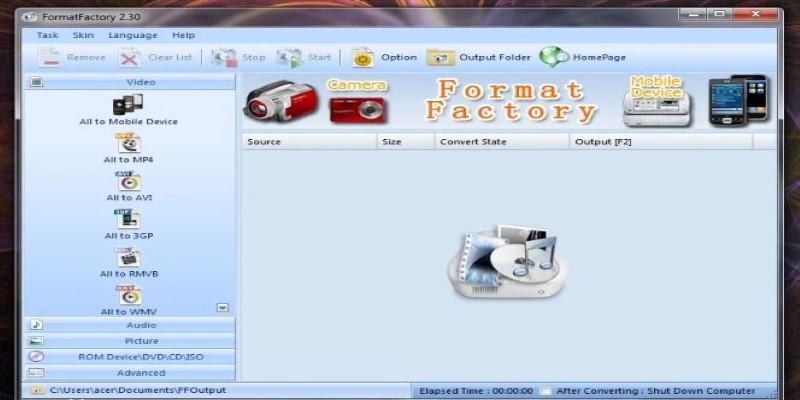
It has a simple drag-and-drop interface and is free, though it shows some ads during installation—watch out for those extra software offers. For basic conversion, it works fine. Don't expect perfect results with every SWF file—especially if they’re complex—but for older files or animations, Format Factory can usually pull it off.
Any Video Converter (AVC)
Any Video Converter is a popular all-purpose tool that supports SWF to WMV conversion. It's designed for beginners, with presets that make the process simple even if you know nothing about formats or codecs.
You import your SWF file, choose WMV as the output, and click convert. The software takes care of the rest. It also includes basic editing features like trimming, cropping, and adding subtitles. The free version has most of what you need, but there’s a paid version if you want advanced options like batch conversion or GPU acceleration.
How To Convert SWF to WMV Using Movavi Video Converter?
Let's walk through the steps using Movavi Video Converter, which balances ease of use and quality. It doesn't choke on larger SWF files and runs smoothly on most PCs.
Download and install Movavi Video Converter from the official site. Once you open it, you'll see a big "+ Add Media" button. Click it, select "Add Video," and choose your SWF file. If your file loads without errors, you're good to go.
At the bottom of the window, choose “WMV” from the list of formats. You can adjust the output quality here—higher resolutions make larger files. Hit the “Convert” button and wait. The conversion time depends on the file size and your PC, but for a short animation, it usually takes less than a minute.
That's it. Your WMV file will be saved in your selected folder or the default Movavi folder. You can now open it with almost any video player, send it to someone, or upload it to a platform that accepts WMV.
Conclusion
Converting SWF to WMV isn't hard, but you need the right tool. Some old Flash files still contain valuable content—training clips, explainer animations, old portfolio work—and converting them gives them a second life. Whether you use a full-featured app like Movavi or a no-frills freebie like iWisoft, you don’t need a technical background to make it work. Just pick the one that fits your needs and follow the steps. Most of these tools are light enough to run on an average laptop and easy to use without instructions. SWF may be gone from the web, but it doesn't have to be from your hard drive. A good WMV converter lets you keep what matters—and actually watch it.