There's something personal and warm about getting a Christmas card. But when it's a video, it adds an extra layer—faces, voices, music, movement. A video greeting lets you say things that don't always fit on paper. It feels more direct and thoughtful whether you're sending one to family or your co-workers. Making a Christmas greeting video doesn't require film school. Most tools are easy to use, and you don't need to be great on camera. You just need a bit of heart and a few clicks.
Here’s a simple guide to help you get it done without getting lost in software menus or trying to sound too polished. Let’s start with a few tools that make this easy.
Tools to Create a Christmas Greeting Video or Video Card
Canva
Canva is popular for design work, but its video feature is just as useful. It has templates specifically for Christmas video cards. You choose a template, drop in your photos or clips, change the text, and that's it. You can edit animated stickers, music, and even pre-set messages.

You can also record a short message directly in Canva or upload one from your phone. It's drag-and-drop, so there's not much of a learning curve. It works on both desktop and mobile; you can download the finished video or send it with a link. It's free to start, but some music and images are part of the paid plan.
Animoto
Animoto is focused on video slideshows, making it perfect for greetings on holiday. You upload a series of images or clips, choose a theme, add a bit of music, and let it render into a polished video.
The holiday templates are well put together—many with falling snow effects, warm lights, and soft music. You can include short text messages on each slide, so it's good for people who want to say more than just "Merry Christmas" but don't want to record themselves speaking. It doesn't take long to put something nice together, and you can use it on your browser without needing to install anything.
Kapwing
Kapwing is a flexible browser video editor. It's not as template-based as the others, so it's better if you want full control without complicated software.
You can start with a blank canvas or use one of their templates. Add photos or clips, trim, crop, put in music, write your greeting, and time everything out just how you like. If you're adding voice, it has automatic subtitle generation. You can export it in different sizes, depending on whether you send it via email or post it on Instagram or WhatsApp.
InVideo
InVideo is designed for people making marketing content, but it also has many seasonal templates. If you like something that looks like a Christmas ad, this one's a solid pick.
Its interface is a mix of timeline editing and quick template selection. You can search “Christmas greeting” and find dozens of ready-made cards that just need your name or photo. It lets you add voice-overs, music, and live-stock footage (like snowy towns or fireplaces). Some parts are only for paid accounts, but there's plenty available for free, too.
Mojo (Mobile App)
Mojo is a handy app for creating short animated videos if you're doing everything on your phone. It's made mostly for social media, but many Christmas templates work great as video greetings.
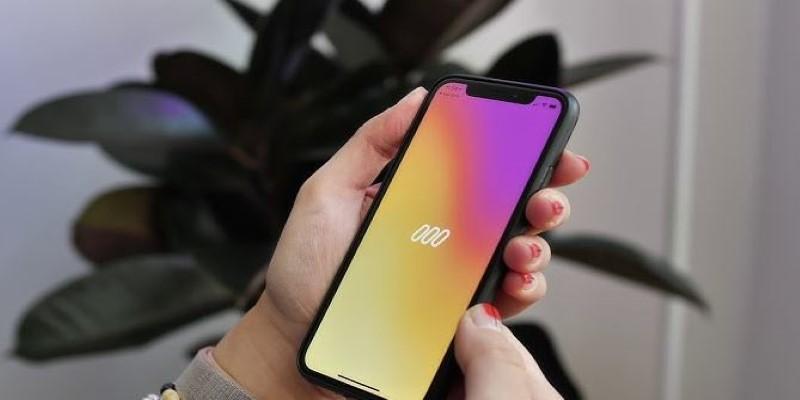
You can pick a design, add a couple of clips or stills, type in your message, and then choose from dozens of animations. It's fast and stylish and works well with vertical videos (great if you're sending it through Instagram Stories or WhatsApp). The music options are simple, and the design feels modern, not overly flashy.
How to Make a Christmas Video Card with Canva (Step-by-Step)
Let's walk through how to create a simple Christmas video card using Canva since it's beginner-friendly and works well across devices.
Choose a Template and Customize It
Start by going to Canva and typing "Christmas video card" in the search bar. Several options with festive themes will pop up. Pick one that matches the mood you're going for—funny, classic, cozy, or bright. Click on the template to open it.
You can swap out photos, change text, and drag in new elements from there. Replace stock photos with your family or pet pictures, or add a quick clip of you speaking. If you want a moving background like snowfall, search for "snow animation" in the Elements tab. You can even match colors to your decorations or outfits.
Add Music and Export
Click on the "Audio" tab to pick a background song. Several holiday tracks are available, and you can upload your own if you find a song elsewhere. Adjust the volume so it doesn't overpower any talking you include.
Once the video is ready, preview it and hit "Share" or "Download." You can export it in MP4 format and either email it directly, upload it to a messaging app, or share the Canva link if you want people to view it online.
Conclusion
Christmas video cards are a nice way to say something heartfelt without trying too hard. Whether you're sending it to your parents, friends, or co-workers, it gives you more room to speak and show a bit of yourself than a static card does. You don't need big equipment or editing skills—just a few photos, words, and the right tool.
Stick with Canva if you want something simple and good-looking, or use Kapwing for more control. Mojo is a quick mobile option. Whatever you pick, just make it honest. A short smile, a simple "Merry Christmas," and a minute of your time go a long way.