Editing a video on your iPhone doesn't need to feel like a tech project. You don't need a fancy camera or a studio setup to make your clips look good. Whether trimming a clip from a birthday, adjusting brightness on a beach video, or putting together a short montage from your trip, your iPhone can handle much of it — even older models like the iPhone 5s or 6. The tools are built-in or easy to install; you don't need editing experience.
Below are a few simple apps that simplify video editing on iPhones, starting with the iPhone 5s and ending with the iPhone X. Each tool has its style, but they're all good for basic to medium editing.
Best Video Editing Apps for iPhone
iMovie (Free from Apple)
iMovie is Apple's editing app, and it's surprisingly capable. It comes pre-installed on newer iPhones but can be downloaded for free if you don't have it already. The interface is clean, and the basic functions—like trimming, splitting, adding music, transitions, and titles—are easy to get the hang of.
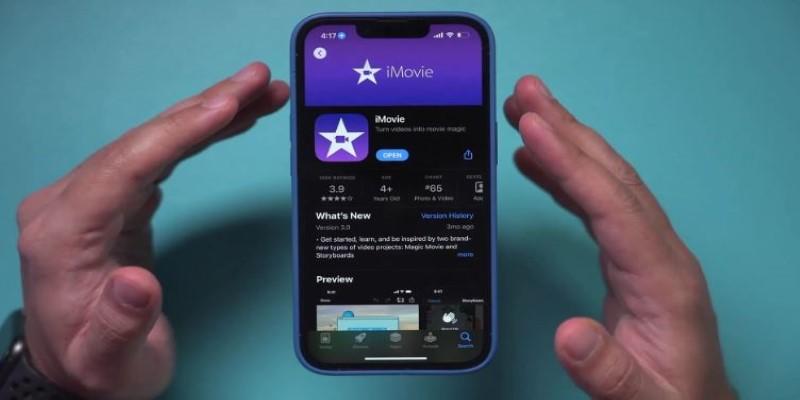
If you're using an older phone like the iPhone 6 or 5s, it still runs decently, though heavier projects might lag a bit. It works well for short edits, like making a family slideshow or a social media video. You can also use the "Trailer" feature to quickly create movie-like intros.
Splice by GoPro
Splice is simple and snappy. It’s designed for speed, and even beginners pick it up fast. Originally made by GoPro, it’s now open to all users and isn’t just for action footage. You can combine clips, trim parts you don’t want, add background music (with a decent music library), and even insert simple text.
It's lighter than iMovie, so it runs smoothly on older iPhones. This app is a good bet if your phone has low storage or processing power. One of its standout features is automatic music syncing to video cuts, which can give your video a more polished rhythm with minimal effort.
InShot
InShot is one of the most downloaded video editing apps on the App Store, and it’s popular for good reason. It’s straightforward, has a familiar touch-and-drag interface, and handles video, photo, and audio layers well. You can crop, adjust playback speed, and add stickers, voiceovers, or background blur.
While free to use, some features are locked behind a watermark or ads unless you upgrade. Still, even the free version does a lot. Older iPhones handle it well, especially if you're not doing anything longer than a few minutes. It's ideal for making videos for Instagram or TikTok, where quick edits and vertical formats matter.
Clips (by Apple)
Clips is another Apple app, but more casual than iMovie. It’s made for fast, fun video creation. Think of short clips with filters, text bubbles, emojis, or soundtracks. What's nice is how simple the layout is. You record right in the app, then edit your shots immediately.
It’s not for full-scale editing but great for adding a playful twist to everyday videos. Features like Live Titles (which automatically turn speech into subtitles) work surprisingly well. This app keeps it fun and fast if you're just trying to make a cute clip for family or friends.
VN Video Editor
VN (short for VlogNow) is underrated but powerful. It’s free and offers multi-layer editing, which isn’t common in free apps. You can drag and drop clips, cut and trim, add transitions, insert subtitles, and even color-grade your video. It feels like a mobile version of something more advanced, but it’s still beginner-friendly.
It performs smoothly on newer iPhones but  does fine on older ones, too, if you keep the projects short and don't overload them with too many edits. VN is a good pick if you want more control but don't want to pay or learn a complicated system.
How to Edit a Video with iMovie on iPhone?
Open iMovie and Create a New Project
Open the iMovie app on your iPhone. On the main screen, tap "Create Project" and choose "Movie." Your photo and video library will open. Select the video clips or photos you want to include, and then tap "Create Movie" at the bottom of the screen.
You'll be taken to the editing timeline, where your clips are arranged in the order you chose. Tap on any clip to bring up editing tools like cut, duplicate, detach audio, and speed control. You can drag the clips around to rearrange the sequence.
Add Transitions, Music, and Text
Tap the small square icon between two clips to add transitions between clips. You can choose from several options like dissolve or slide. To add music, tap the "+" button above the timeline, choose "Audio," and browse through soundtracks or your music. iMovie adjusts volume levels automatically to avoid clipping.
For text, tap the clip, select "Titles," and pick a style. You can type your text and adjust its position. Once you're happy, tap "Done." Then, to export the final video, hit the share icon and choose Save Video. Pick the resolution (usually 720p or 1080p) and wait a moment as it renders. The video will be saved to your Photos app.
Conclusion
You don't need a new iPhone or any kind of video editing background to make good-looking videos. Whether cutting clips down, adding music, or stitching together a quick story, tools like iMovie, Splice, InShot, Clips, and VN make it doable. Most of these work well even on older models like the iPhone 5s or 6, as long as you keep edits light. Start with whatever app feels easiest. Try trimming one clip or adding a title—nothing too big. The more you use these tools, the easier they get. You don’t have to be perfect. Just focus on making something you enjoy watching.