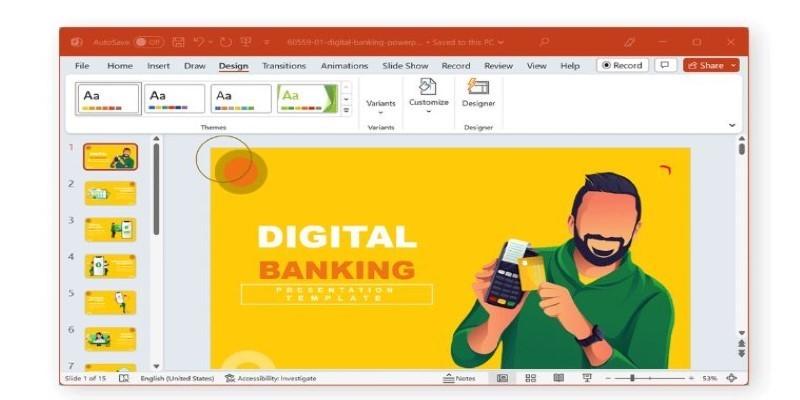
You might not think of Microsoft Word when you think of a slideshow. PowerPoint usually comes to mind. But Word can still get the job done in its way—and depending on your needs, it might be all you need. Whether you're trying to share information in a visually digestible way or want to print something that looks like a presentation, Word has several options. You just need to know where to look and how to use them.
Let's walk through the actual ways to build a slideshow in Word—each one with its approach.
How to Create a Slideshow in Microsoft Word: Every Method That Actually Works
Using SmartArt to Build Slide-Style Layouts
SmartArt is one of the most useful tools when it comes to mimicking slides in Word. It’s designed for visual storytelling. Instead of writing out points in bullet lists, you can use visual diagrams that instantly make your document feel like a deck.
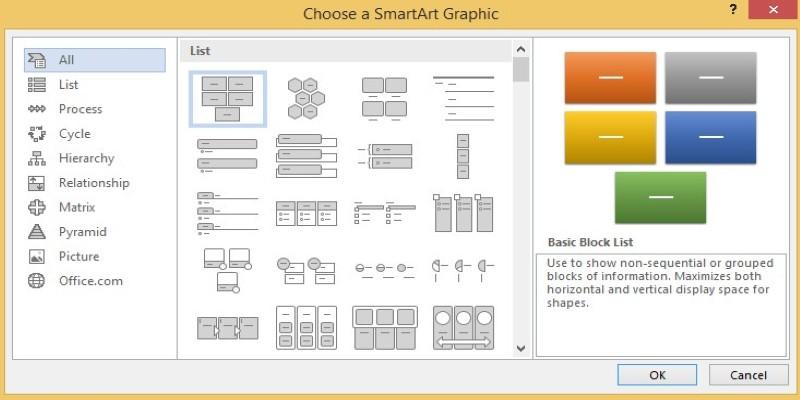
You start by heading to the "Insert" tab and clicking "SmartArt." From there, you choose from categories like Process, Cycle, Hierarchy, and more. Each of these gives you a pre-designed structure that you can edit with your text. You can also change colors, layout direction, and font size to make each piece fit your style.
What makes this useful for a slideshow is that each SmartArt graphic can act like a slide. You can even space them out one per page, especially if you're planning to save it as a PDF or print it. If you mix this with Word's headings, each "slide" section can be easily organized in the Navigation Pane.
Turning Pages Into Printable Slides with Text Boxes and Shapes
If you're building a presentation-style document that you want to print or share digitally in a scrollable format, text boxes are your best friend. Start with a blank page layout. Then, insert a text box, size it like a typical slide would be, and fill in your content. You can add headings, bullet points, and even images.
To go further, you can drop in shapes—arrows, callouts, icons—to mimic what you’d normally find in a PowerPoint slide. Each page becomes a new slide. And since Word has rulers and gridlines (you can turn these on from the “View” tab), alignment gets easier.
You can format these with bold titles, clean fonts, and background colors. The final result will feel like a slide, just not in the traditional animated way. This is best for scenarios where you're sharing a PDF handout or preparing a printable guide.
Creating a Slideshow Using Word’s Outline View with PowerPoint Export
This one’s a bit more behind-the-scenes but works well if you want to begin in Word and finish in PowerPoint. Use the Outline View under the “View” tab. Every Heading 1 you create becomes a slide title, and Heading 2s become bullet points under that slide.
Write your content using Word’s built-in Styles. Use Heading 1 for slide titles and Heading 2 for bullet points. Keep paragraphs short and to the point—treat each Heading 1 section like it’s going to be a new slide.
Once your outline is ready, you can open PowerPoint, go to “Open,” and choose “All Outlines” in the file picker. Import your Word document, and PowerPoint will automatically convert each heading into slides. It’s one of the easiest ways to work on structure before diving into the design.
Making a Scrollable Slideshow-Style Document with Page Breaks
Sometimes, you just want a slideshow feel but in a single scrolling document—maybe for PDF sharing or uploading to platforms that don’t support actual presentations. You can structure your Word document so that each page acts like a standalone slide.
Start with a blank layout and manually insert Page Breaks after each section. Then, format each page like you would a slide—large bold headings, key points, visuals, icons, and background shading if needed.
The trick here is keeping content per page minimal—just like a slide. One main point, supporting bullets, and an image. You can use a consistent format across all pages to make it feel unified. The result is a document that reads like a slideshow, even though it scrolls like a regular file.
Using the “Web Layout” View for On-Screen Presentation
Most people use “Print Layout,” but switching to “Web Layout” changes how your content is displayed. It removes page breaks and lets you design your document in a continuous format, which is good for on-screen reading.
While this doesn’t split your document into slides, you can design each “slide section” by using large font sizes, SmartArt, and big visuals. Because the Web Layout gives you an edge-to-edge view, it’s easier to see how it will look when presented on a screen. This is useful when projecting the file or using screen-sharing tools.
Saving the Document as a PDF for Presentation Purposes
Once your document is designed with slide-style formatting—whether it’s using SmartArt, shapes, or text boxes—you can save it as a PDF. This gives it a presentation feel, especially if you’ve styled each page carefully.
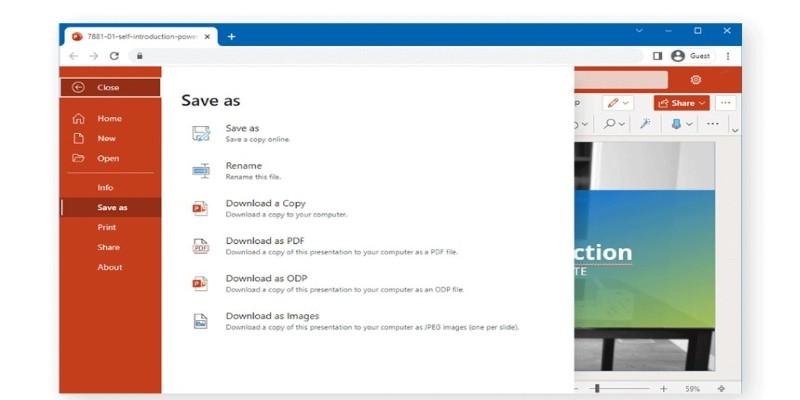
To do this, just go to "File" → "Save As" and choose PDF from the list. Then, open it in a PDF reader and view it in full-screen mode. Each page becomes a slide. This is a popular workaround for those who want a presentation but don't want to switch software.
Using Full-Screen Reading View for Presentation
Word has a lesser-known feature called “Read Mode.” It’s found in the “View” tab or by clicking the icon in the bottom-right corner of the screen. This mode hides most of the toolbars and shows your document in a full-screen view.
If your document is designed slide-style—with clear headings and visual breaks—it’ll feel very similar to a presentation. You can scroll or use arrow keys to move between pages. This is a lightweight way to present something without having to open another app.
Final Thoughts
You might be surprised at how much Microsoft Word can handle when it comes to presentation-style content. It’s not going to replace PowerPoint when it comes to animations or effects. But if your focus is on clarity, structure, and sharing something that feels like a slideshow, Word gives you more than one way to do it. Just pick the method that suits your needs, and it’ll do the job.